X image design guide
Twitter (X) Image Sizes: Banner, Header, Profile Picture and Post Images
Updated
The recommended Twitter banner size is 1500 × 500 pixels, a 3:1 rectangle. X still uses this header shape as of 2026. Start with a 400 × 400 profile picture and a 1600 × 900 landscape post image, then check how each asset appears on your actual profile or post.
Correct dimensions prevent avoidable resizing, but they do not protect every word from cropping. A header sits behind your profile picture; a multi-image post rearranges pictures into a grid. Design around those viewing conditions before exporting, especially when your image contains a headline, product screenshot, or chart.
Twitter banner size and image specifications at a glance
Use these working export sizes as of 2026. Recommended canvases are design starting points, not the only accepted dimensions. Recheck X Help before a large campaign because upload limits and presentation can change. The profile limit differs from the limit for photos attached to posts.
| Asset | Pixels | Aspect ratio | Maximum file / export target | Format |
|---|---|---|---|---|
| Header / banner | 1500 × 500 | 3:1 | Keep under 5 MB; check uploader | JPG or PNG |
| Profile picture | 400 × 400 | 1:1; circular display | 2 MB | JPG or PNG |
| Landscape post | 1600 × 900 recommended | 16:9 | 5 MB | JPG or PNG |
| Portrait post | 1080 × 1350 suggested | 4:5 | 5 MB | JPG or PNG |
| Animated GIF | Match the content | Preview in composer | 15 MB web; 5 MB mobile | GIF |
Twitter header size (banner): leave a practical safe zone
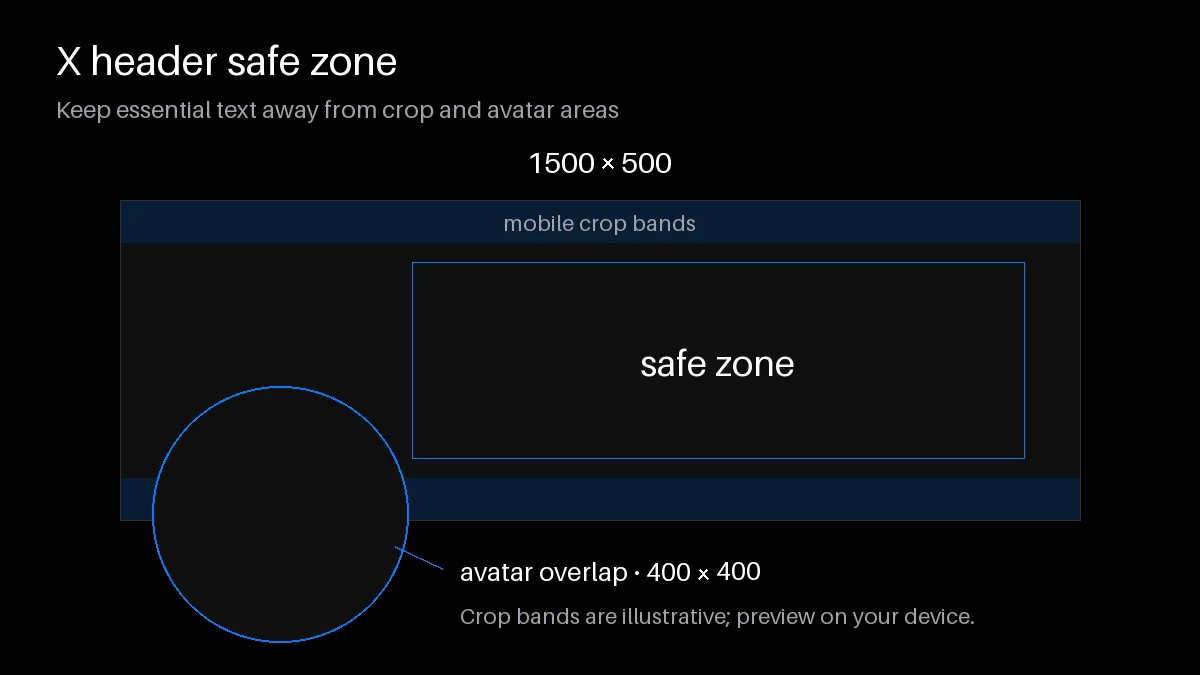
Twitter header size and X banner size describe the same asset. Place essential wording around the middle of the canvas, away from the lower-left area where the profile picture overlaps it. Mobile presentation can crop the top and bottom, so decorative texture should reach the edges while names, faces, and logos stay comfortably inside them.
There is no single safe-zone rectangle that guarantees identical results across every screen. Upload a draft, inspect a narrow phone view and a desktop view, and move any crowded elements inward. The correct Twitter banner size gives you a useful canvas; this preview check decides whether the composition works. Keep one short promise, such as the topic you teach, rather than squeezing a whole biography into the header.
X profile picture size: design for the circle
Prepare a square 400 × 400 image with your face or mark centered. X displays it as a circle in ordinary profile views, which removes the corners. Leave breathing room around hair, glasses, and logo lettering. A square border usually looks awkward once its corners disappear, so preview the circular crop before saving.
Check the picture at a small size as well as full resolution. A detailed wordmark may look excellent in an editor but become unreadable beside a reply. Use a recognizable face or simple symbol, and keep the same source file for future updates instead of downloading and recompressing the displayed avatar.
Tweet image sizes for single, two, three, and four images
For a single image, 1600 × 900 is a useful landscape export; 1080 × 1350 gives you a taller 4:5 option. Both 16:9 and 4:5 suit ordinary feed images. Select the shape that makes the information readable, rather than stretching a finished landscape chart into a portrait canvas.
Grid previews depend on the client and source images, so there is no universal pixel size for each tile. Keep subjects near the center, reorder images deliberately, and include an image description that conveys the important information rather than merely naming the file.
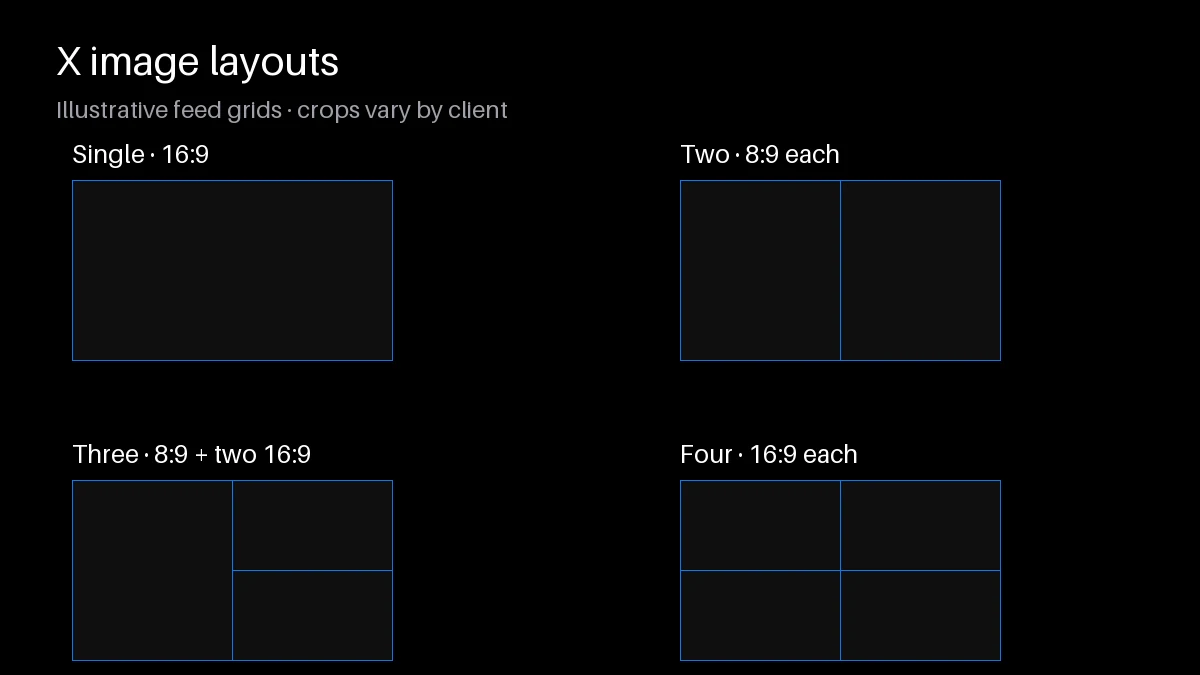
- One image: use the whole composition for one clear idea. Keep chart labels readable without requiring readers to open the image.
- Two images: expect paired previews. Give each picture its own focal point and inspect both crops before publishing a before-and-after comparison.
- Three images: expect an asymmetric preview. Put the strongest visual first and avoid splitting one sentence across separate pictures.
- Four images: design for a compact grid. Use consistent source proportions and make every tile understandable independently when someone opens it.
Twitter video and GIF sizes
As of 2026, GIF uploads can reach 15 MB on the web but only 5 MB on mobile. Reduce animation length, dimensions, or colors if the file is too large. A short looping demonstration often communicates more clearly than a busy animation with tiny captions. Animated headers and profile pictures are not supported.
For standard non-Premium video uploads, X lists up to 140 seconds and 512 MB. A 1920 × 1080 MP4 is a practical landscape export, not a universal maximum resolution. Premium allowances differ; check X's video help for your upload route. Add captions and keep essential interface details large enough to read on a phone.
Common mistakes: blurry banners and cropped text
A blurry header often starts with a small source image enlarged to the Twitter banner size. Re-export from the original design instead of stretching a screenshot. Use PNG for flat graphics and lettering, or a good-quality JPG for photography. Compare the downloaded export with the uploaded result to separate export damage from platform processing.
Do not solve cropping by shrinking all the text until it becomes unreadable. Shorten the message and move it inward. Avoid thin lettering over a detailed photo; a simple solid area behind the words improves separation. Save a layered master so future profile changes require moving elements, not rebuilding a flattened image.
Post the image with your thread
Draft the explanation in the Twitter Thread Generator, then put each visual beside the claim it supports. Use the tweet mockup generator to review the wording and overall presentation before checking the actual attachment in the publishing composer.
ThreadMaster supports direct X publishing. You can also plan image posts using its X scheduling calendar. Check the final image order, captions, and publication time before scheduling; a well-sized image still needs context in the post itself.
Frequently asked questions
What is the Twitter banner size in pixels?
Use 1500 × 500 pixels at a 3:1 ratio. Keep important text away from the edges and the overlapping profile picture.
Does X compress images?
X processes and scales uploaded images for display. Keep an original master, avoid repeated JPG exports, and inspect the published version for softened details.
Is PNG or JPG the best format?
PNG is a useful choice for text and flat graphics. JPG usually produces smaller photographic files. Compare both exports when your design mixes photos and lettering.
Why is my header blurry?
Check whether you enlarged a small source, exported at low quality, or used very thin text. Re-export from the original at the intended dimensions.
How should I handle the profile picture circle crop?
Start with a square image, center the subject, and keep important details away from the corners. Check its appearance at reply-thumbnail size.
What image size should I use for tweets?
Start with 1600 × 900 for landscape images or 1080 × 1350 for portrait graphics. Preview multi-image posts because their grids crop individual pictures differently.
Are image sizes the same on mobile?
Use the same source dimensions, but expect different display sizes and crops. GIF upload limits also differ: 5 MB on mobile versus 15 MB on the web.
Can I schedule image posts on X?
Yes. ThreadMaster supports X image-post scheduling through its scheduling calendar, linked above. Review the media preview and time zone before confirming publication.